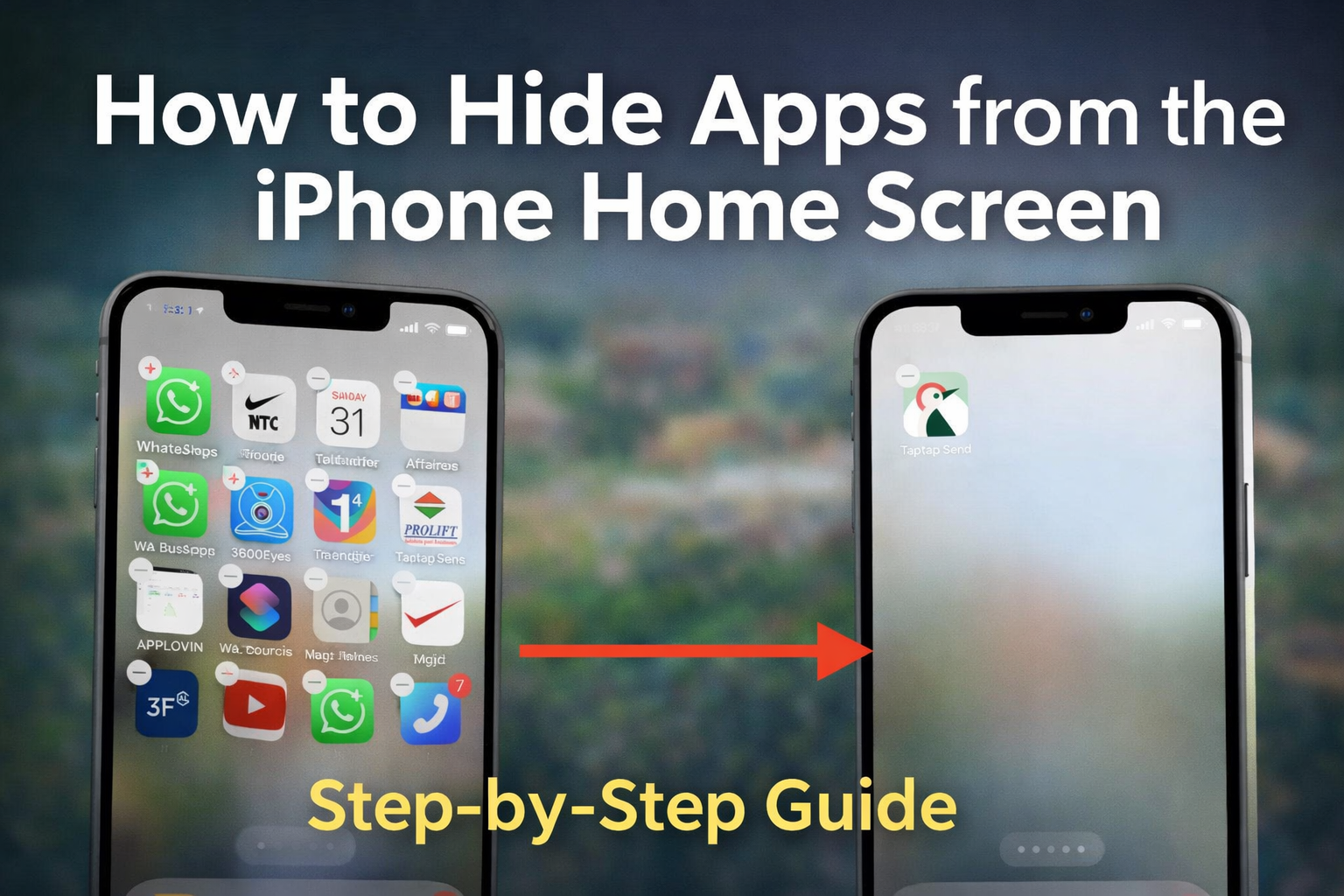
Why Hide Apps on iPhone?
Hiding apps is useful if you want to reduce clutter, limit distractions,
or keep certain apps out of sight without uninstalling them.
Hidden apps remain fully functional and can still be accessed through search.
Step 1: Enter Home Screen Edit Mode
Press and hold on any empty area of your iPhone Home Screen
until all app icons start shaking.
This means you are now in edit mode.
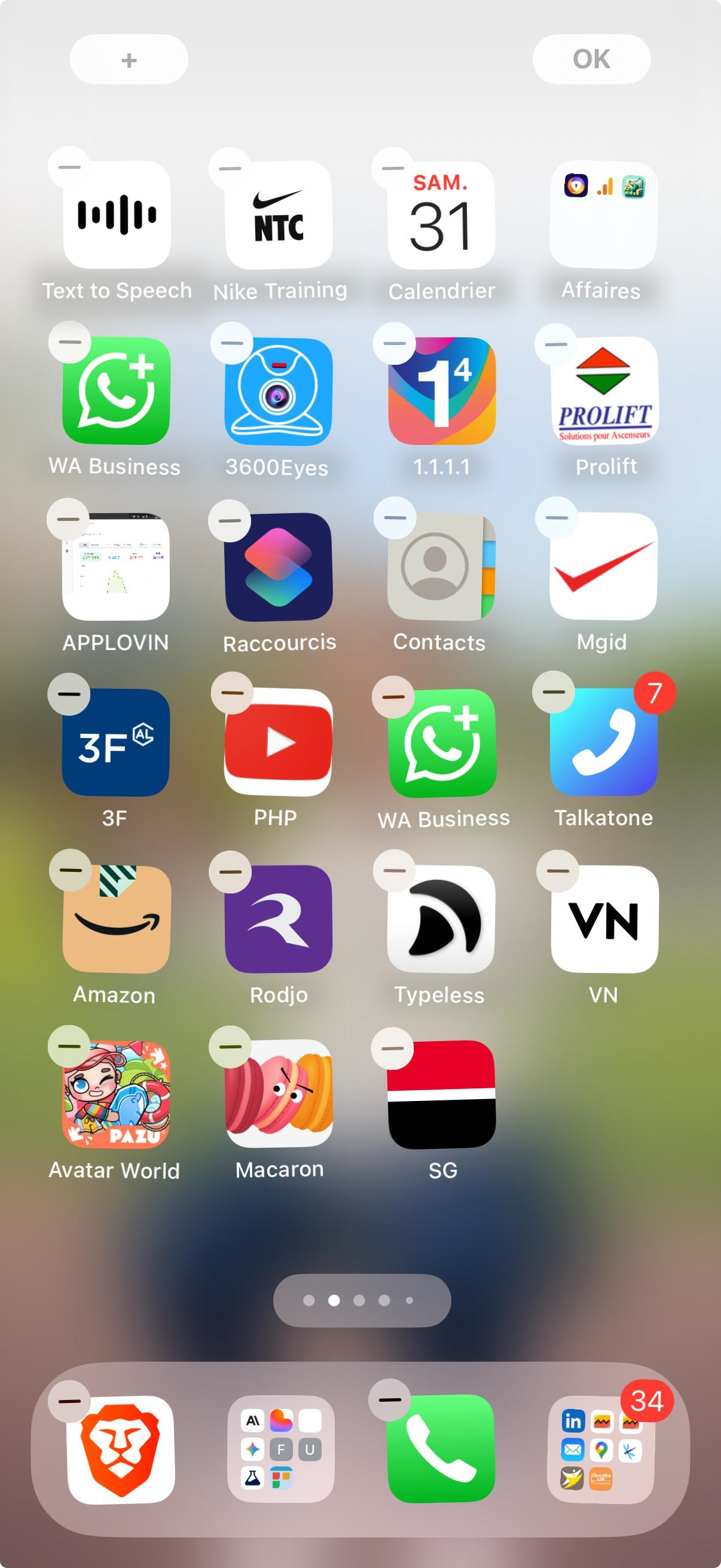
In this mode, you can move apps, create folders,
and manage Home Screen pages.
Step 2: Move the Apps to a New Empty Page
Drag the app or apps you want to hide to a new empty Home Screen page.
This page should contain only the apps you plan to hide.
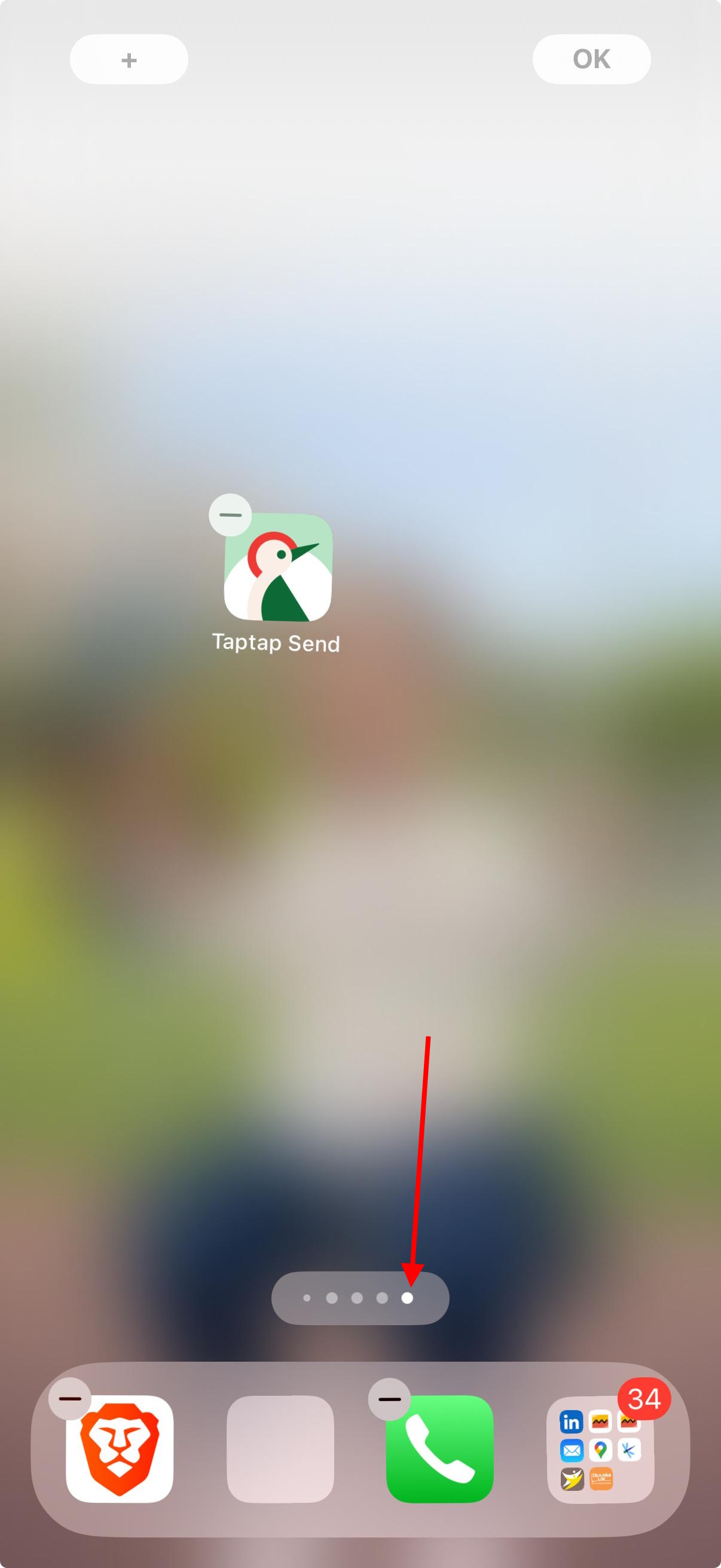
Keeping hidden apps on a separate page makes it easier
to manage visibility later.
Step 3: Open the Home Screen Page Selector
While still in edit mode, tap the row of dots at the bottom of the screen.
This will show all Home Screen pages.
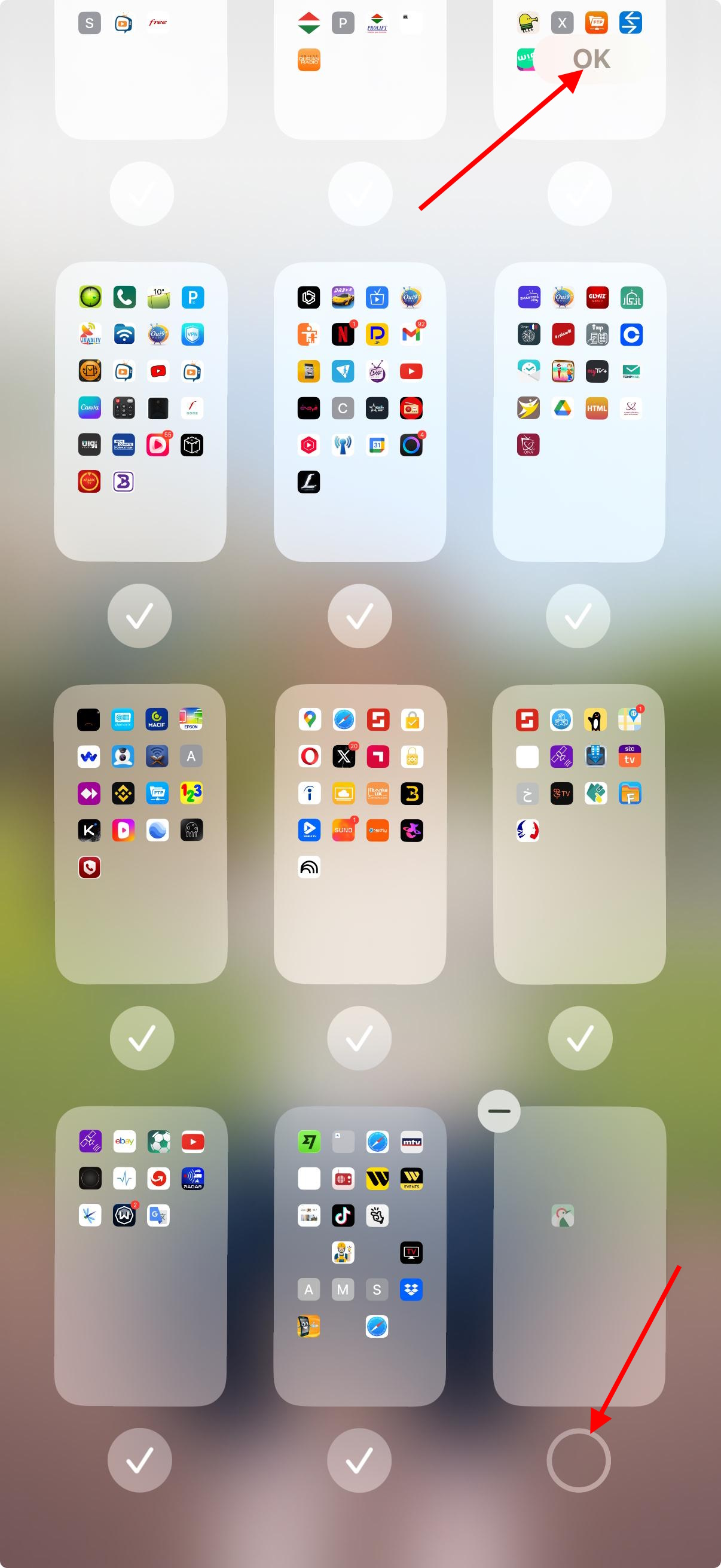
Each page has a checkmark that controls whether it is visible or hidden.
Step 4: Hide the Page Containing the Apps
Find the page where you placed the apps you want to hide.
Remove the checkmark from that page, then tap OK.
The selected page will instantly disappear from the Home Screen,
and all apps on it will be hidden.
How to Access Hidden Apps
Hidden apps are not deleted.
You can still access them anytime by:
- Using Spotlight Search (swipe down and type the app name)
- Re-enabling the hidden Home Screen page
How to Unhide Apps
To show the hidden apps again:
- Press and hold on an empty area of the Home Screen
- Tap the Home Screen dots
- Enable the checkmark for the hidden page
- Tap OK
The page and its apps will reappear immediately.
Important Notes
- This method does not delete apps or data
- Hidden apps can still send notifications
- No third-party apps are required
- Works on most modern iOS versions
Conclusion
Hiding apps on iPhone is a simple and effective way to keep your Home Screen clean
while maintaining full access to your applications.
Using Apple’s official Home Screen management tools ensures safety,
stability, and compatibility with future iOS updates.